Quick answer: Microsoft Copilot tips and tricks for 2026
Microsoft Copilot works best when you write natural, specific prompts, give it context (audience, tone, goal), and build complex tasks up in steps rather than one big ask. Copilot now also sees what's on your screen through Vision, edits drafts inline as you write, and can turn SharePoint content straight into finished Word, Excel or PowerPoint files.

Unlock the Full Potential of Microsoft Copilot
Microsoft Copilot is more than an AI assistant, it’s a productivity powerhouse integrated across Microsoft 365. From drafting documents to automating workflows, Copilot helps businesses save time and work smarter. Here are 20 detailed tips and tricks to maximise its potential in 2026.
20 Detailed Copilot Tips and Tricks
- Use Natural Language Commands: Instead of rigid prompts, type requests conversationally.
Example: “Summarise this report into 5 bullet points” or “Create a project timeline for Q1.” Copilot understands context and intent. - Show Copilot What You're Looking At: With Copilot Vision, you can share your screen or point your phone camera at something and talk it through live, a dashboard, a document, an error message, even a real-world object. Copilot uses what it sees, alongside your other work and web context, to explain, spot issues, and suggest next steps.
- Summarise Long Documents: In Word, ask Copilot to condense 20-page reports into executive summaries. Perfect for board meetings or client updates.
- Create Meeting Notes Automatically: After Teams calls, generate summaries and action items instantly.
Example: “Summarise today’s meeting and highlight next steps.” - Automate Email Responses: In Outlook, draft professional replies in seconds. Add tone adjustments like “Make this more formal” or “Add a friendly closing.”
- Refine Drafts Without Starting Over: You can now select a section of an email you're writing in Outlook and ask Copilot to adjust just that part, its length, tone, or structure, instead of regenerating the whole message.
- Generate Data Insights in Excel: Ask Copilot to analyse trends, forecast sales, or create pivot tables.
Example: “Show top-performing regions for Q4.” - Edit Spreadsheets Conversationally: The new Edit with Copilot in Excel lets you make changes by describing what you want, rather than manually adjusting formulas or formatting yourself.
- Build Presentations Quickly: In PowerPoint, turn bullet points into polished slides with design suggestions.
Example: “Create a 5-slide deck on sustainability goals.” - Plan Projects with Ease: Use Copilot in Planner or Project to create timelines, assign tasks, and set milestones automatically.
- Rewrite for Tone and Clarity: Adjust tone for different audiences: formal for clients, conversational for internal teams.
Example: “Rewrite this email to sound persuasive.” - Translate Content Instantly: Translate documents or emails into multiple languages for global teams without leaving your app.
- Brainstorm Creative Ideas: Use Copilot for marketing copy, blog topics, or campaign slogans.
Example: “Suggest 10 LinkedIn post ideas for cyber security awareness.” - Check Compliance Before Sending: Validate sensitive content against DLP policies to avoid breaches.
Example: “Does this document meet GDPR requirements?” - Automate Repetitive Tasks: In Power Automate, let Copilot build workflows like invoice approvals or onboarding sequences with minimal input.
- Enhance Security Recommendations: Ask Copilot for MFA setup steps or Zero Trust best practices to strengthen your security posture.
- Integrate with Teams Chats: Use Copilot for quick answers during meetings or summarise chat threads for clarity.
- Get Feedback on Your Work: On a Copilot Page, select "Suggested edits" from the Copilot Shortcuts menu to get in-line feedback on clarity and quality, which you can apply directly.
- Turn SharePoint Content Into Finished Files: Ask Copilot to generate a complete Word document, Excel workbook or PowerPoint deck straight from content already sitting in your SharePoint sites, no blank page required.
- Personalise Output: Provide examples or style preferences for tailored results. Example: “Write this proposal in the same tone as last quarter’s report.”
Prompting Dos and Don’ts
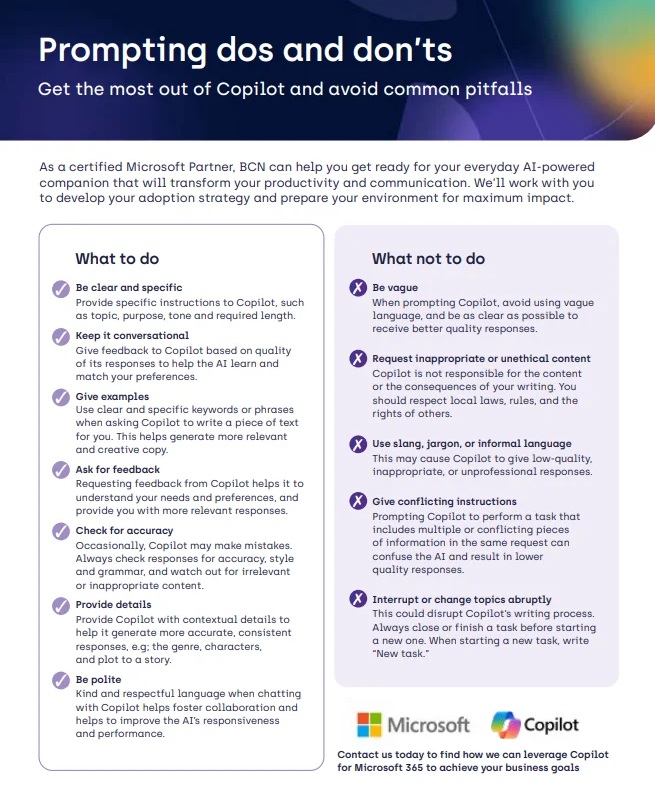
Getting great results from Copilot starts with effective prompting. Here’s how to structure your prompts for the best outcomes:
✔️ Prompting Dos
- Be specific: “Create a 200-word summary of this document focusing on financial risks.”
- Provide context: Include goals, audience, or tone. “Write this update for the senior leadership team.”
- Include examples: “Rewrite this email using the tone of the example below.”
- Break large tasks into steps: Let Copilot complete parts, summaries, outlines, then full drafts.
- Use follow-up prompts: “Shorten this by 20%.” / “Add 3 alternative headings.”
- Ask for improvements: “Make this more concise and remove jargon.”
❌ Prompting Don’ts
- Don’t be vague: Requests like “Write something about this” produce generic results.
- Don’t skip context: Without purpose or audience, Copilot won’t tailor the output correctly.
- Don’t overload one prompt: Avoid asking for tone change, formatting, summarising, and structuring at once.
- Don’t assume Copilot knows your internal jargon: Provide definitions or examples as needed.
- Don’t expect perfection first try: Treat Copilot as an iterative collaborator.
With the right prompting habits, Copilot becomes dramatically more powerful, and far more aligned with your business goals.
Why These Tips Matter
Copilot isn’t just about convenience, it’s about transforming workflows. By mastering these tips, businesses can reduce manual effort, improve decision-making, and enhance collaboration. AI-driven productivity is no longer optional; it’s a competitive advantage.
Real-World Impact
Businesses using Copilot report saving around 9 hours a month per user on document creation and admin, with tasks like building presentations completed up to 29% faster. A Forrester study found SMEs can see returns of 130%+ over three years once teams are properly trained and using it day to day.
How Reflective IT Can Help
We provide expert guidance on deploying and optimising Microsoft Copilot for your business. Our services include:
- Copilot readiness assessments
- User training and adoption strategies
- Integration with Microsoft 365 apps
- Security and compliance configuration
Let us help you harness the full power of AI in 2026, speak to our team.
Reflective IT Tip
Start small; use Copilot for everyday tasks like summarising emails or creating reports, then scale to advanced workflows for maximum ROI.
Frequently asked questions
What is the best way to start using Microsoft Copilot?
Start with everyday tasks you already do, summarising emails, drafting replies, or condensing long documents. Once you're comfortable, move on to more advanced uses like Excel data analysis or building Power Automate workflows.
Do I need to write prompts in a specific format for Copilot?
No. Copilot works with natural, conversational language rather than rigid commands. The main thing that improves results is being specific about what you want and giving context, such as your audience or the tone you're after.
Can Copilot see what's on my screen?
Yes. Copilot Vision lets you share your screen or point your phone camera at something, a dashboard, a document, an error message, and talk it through with Copilot in real time, rather than typing out a description.
Is Microsoft Copilot secure enough for business use?
Copilot is built with enterprise security and compliance controls, including checks against your organisation's data loss prevention policies. That said, getting the setup right for your business, permissions, data governance, and user training, matters just as much as the tool itself, which is where working with a Microsoft partner can help.
How much does Microsoft Copilot cost for a small business?
Copilot is licensed per user on top of an eligible Microsoft 365 plan, so cost depends on your existing licensing and how many users need it. A Copilot readiness assessment is usually the quickest way to get an accurate figure for your business.